
How to create a 3D Catalog
You build a 3D Catalog in the catalog builder, which walks left to right through five steps: Branding, Pages & Nav, Sections, Viewer Options and Publish.
The preview on the right is the real catalog, not an approximation. What you see there is what a visitor will see, and it follows whichever page you are editing.
Nothing you do here is public. A catalog stays a private draft until you publish it, which is covered in a separate article. The builder saves as you go, so you can stop at any point and come back.
📋 Before You Start
- Your company needs 3D Catalogs enabled. If you cannot see it, speak to your account manager.
- You need products that already have a 3D file. The product picker only lists products with a marketing-ready 3D model (GLB, USDZ or other 3D file), so anything still waiting on conversion will not appear yet.
- Set up each product's camera angle and hotspots on its own page first. The catalog reuses them rather than asking you to set them again.
🔧 How to build it
Step 1. Create the catalog
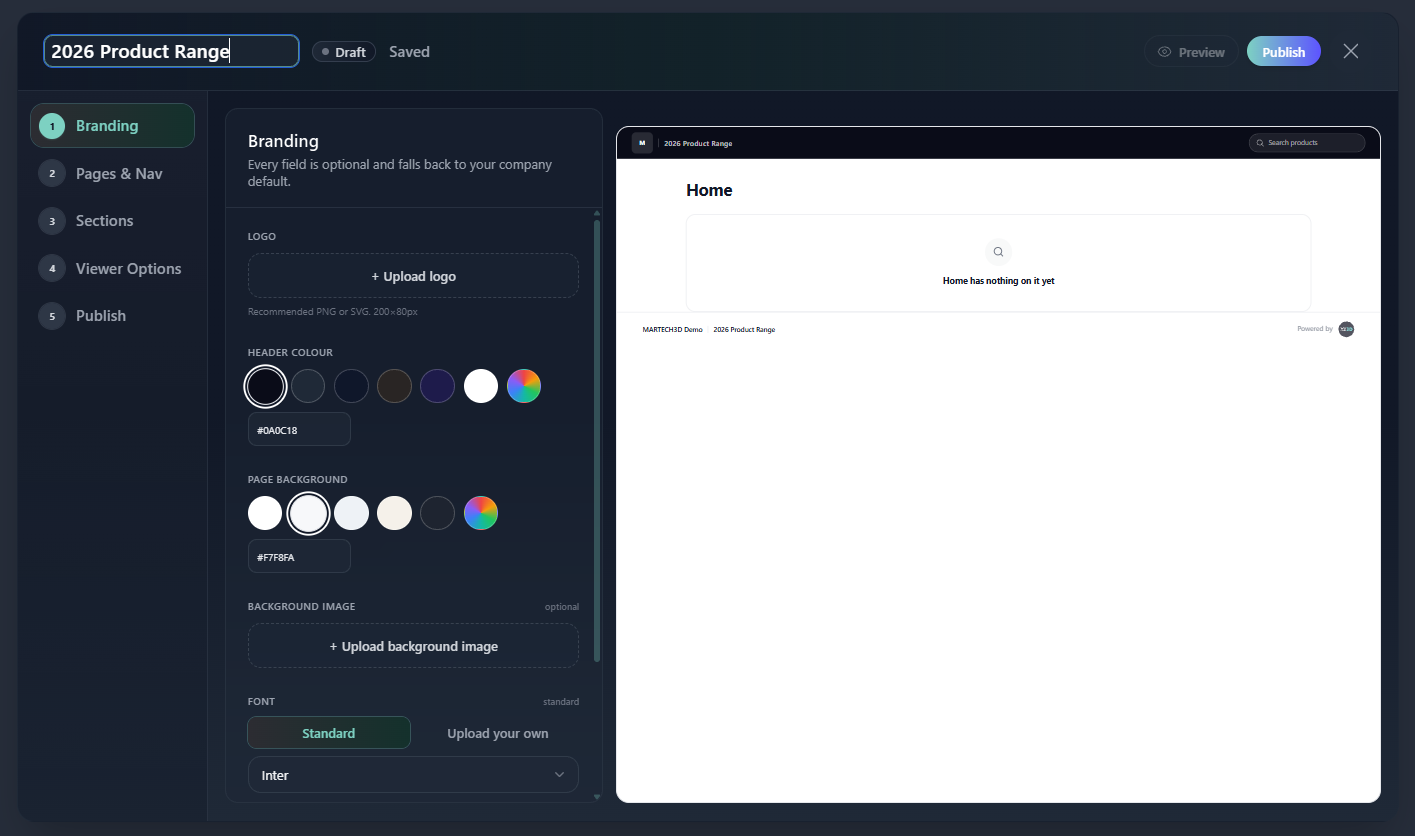
Open 3D Catalogs from the main menu and create a new catalog. Give it a name, for example 2026 Product Range , and select Create catalog. You can change the name later from the field at the top of the builder.
Step 2. Set your branding
On Branding, upload your logo and set Header Colour and Page Background. Then choose a Card Style and Corners for the product cards.
Step 3. Build your pages and menu
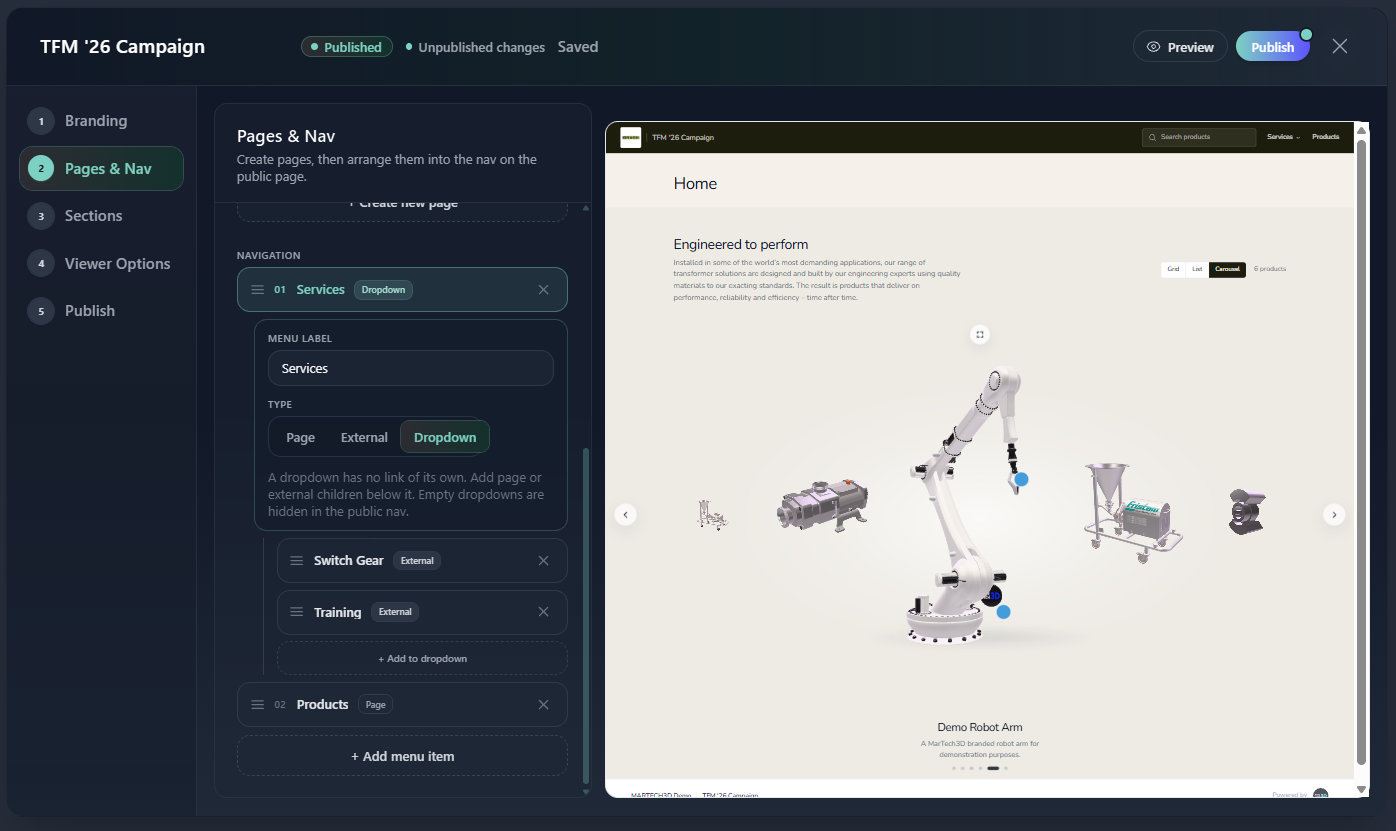
On Pages & Nav, add the pages your catalog needs. Each page has a Page Title and a short web address, for example products . Your first page is the home page.
Then build the Navigation that appears across the top. Each menu item has a Menu Label and a Type:
- Page points at one of your own pages
- External points at any web address, for example your main website
- Dropdown groups several items under one label
The Pages & Nav step showing the Pages list and a Navigation item set to Dropdown.
Step 4. Add sections and choose your products
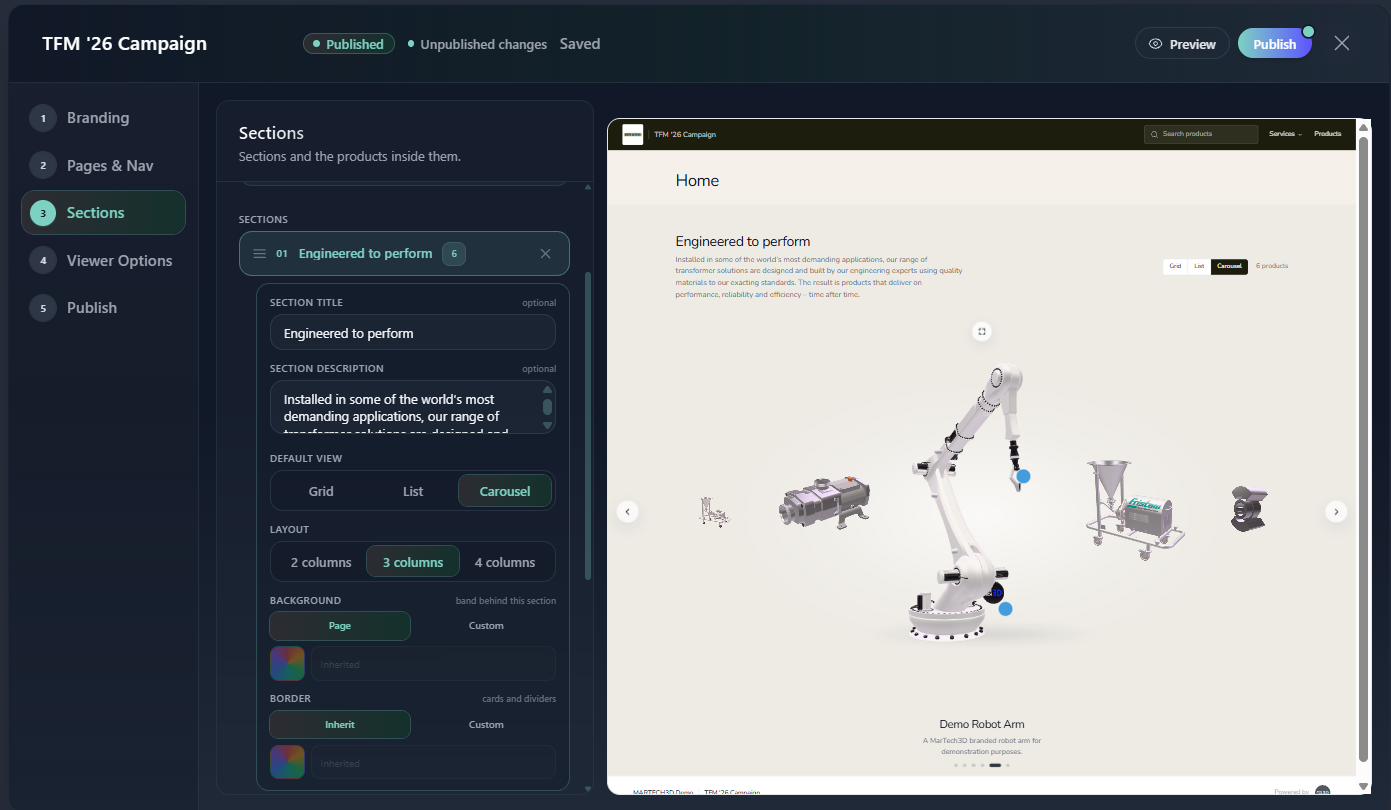
On Sections, first check Editing page at the top, because the sections below belong to whichever page is named there.
Select + Add new section, then for each section set:
| Field | What it does |
|---|---|
| Section Title and Section Description | Both optional. The description is a short intro shown above the products |
| Default View | Grid, List or Carousel. Each section has its own, so one page can open with a carousel and continue as a grid |
| Layout | 2, 3 or 4 columns |
| Background and Border | Leave them inherited to follow your page, or pick a colour for the band behind this section |
Under Select Products, search your products and tick the ones this section should show. Sections can be dragged into a different order using the handle on the left.
The Sections step with a section expanded, Default View set to Grid, and several products ticked under Select Products.
Step 5. Set what each product card carries
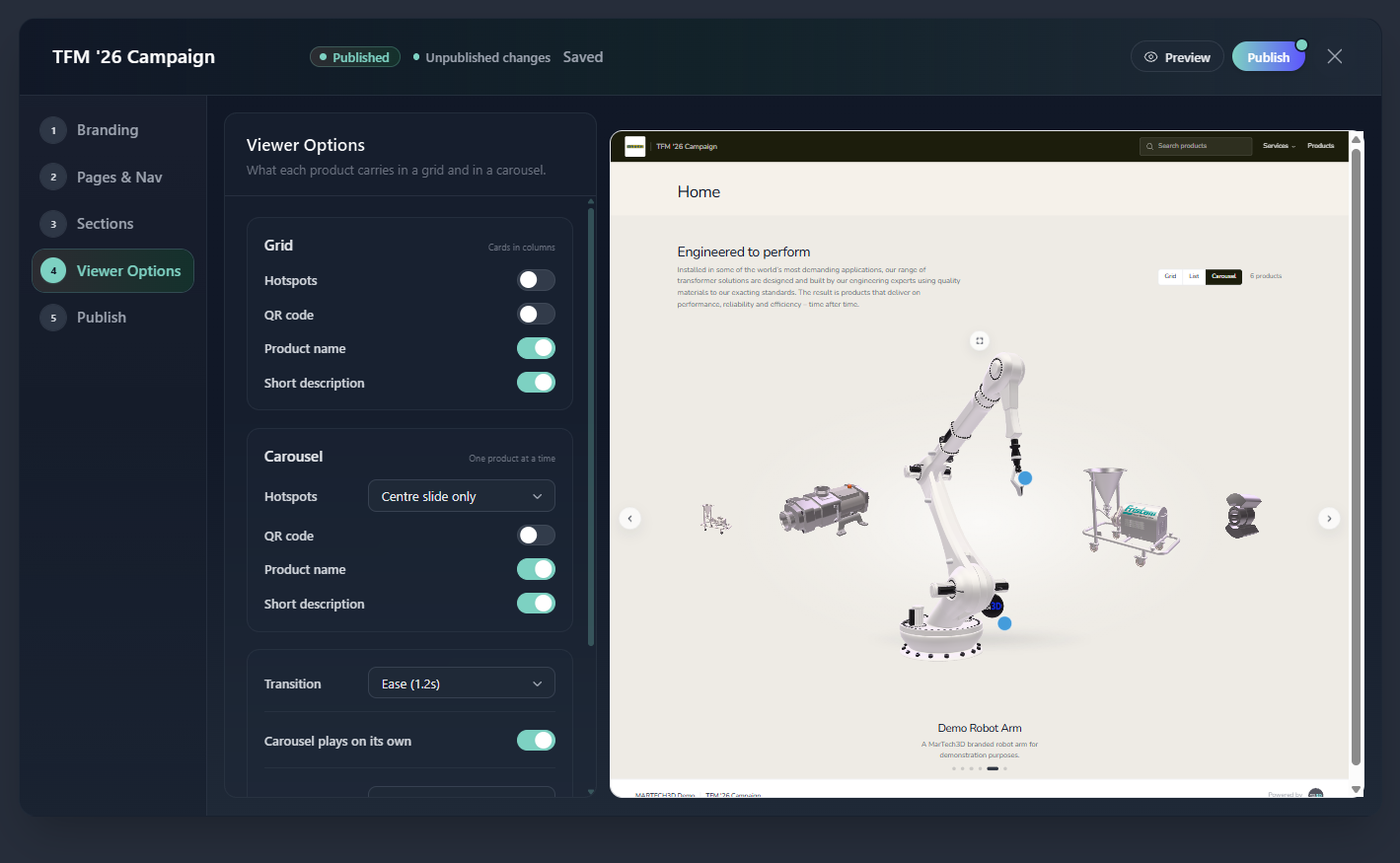
On Viewer Options, decide what a visitor can do with a model. These are set per view, so you can show hotspots in a carousel but keep a grid clean.
Carousel autoplay can be Off, Centre slide only, or Every slide, with a Speed, a Transition and whether it resumes after someone interacts with it.
Models running at once sets how many models are live on screen at the same time. Leave it as it is unless a tablet on your stand struggles, in which case lower it.
The Viewer Options step with Carousel autoplay set and the Models running at once control visible.
ℹ️ Important note
Adding a product to a catalog links to it, it does not copy it. If you later replace that product's 3D model in Engine, the catalog picks up the new model, including on catalogu you have already published. Your product wording behaves differently: it is fixed at the moment you publish, so editing a description will not change a catalog someone is already reading until you republish.
Your MarTech3D administrator sets what happens to a published catalog if one of its products is archived or deleted, so check that with them before you archive anything that appears in a live catalog.
🛠 Need Help?
If you have any questions or run into a problem, contact us via live chat inside MarTech3D | Engine, or email us at support@martech3d.com.