
How to choose what each product shows in a 3D Catalog
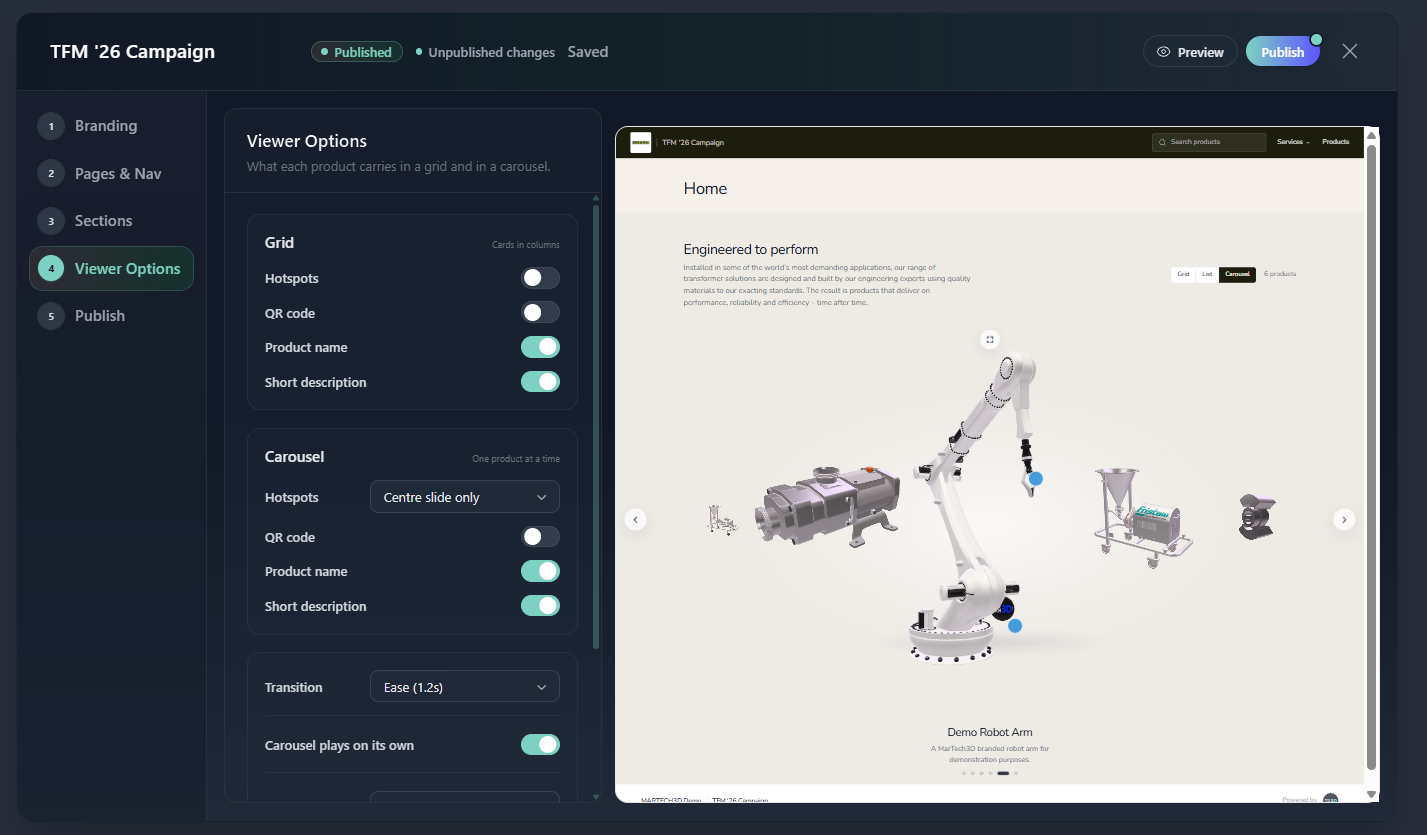
Viewer Options is the fourth step in the builder, and it controls what appears on a product card, separately for each view.
This matters because the views are used for different jobs. A carousel showing one product at a time has room for hotspots and a description. A four-column grid does not, and the same settings would make it cluttered.
✅ What you can switch on, per view
| Option | What it does |
|---|---|
| Hotspots | Whether the hotspots you set up on the product are active here |
| QR code | Shows that product's own QR code on the card |
| Product name | The product title under the model |
| Short description | A one-line description under the name |
Set these separately for Grid, List and Carousel. In a carousel, Hotspots has a third option: Centre slide only, which keeps hotspots on the product being looked at and off the ones either side.
The Viewer Options step showing the Grid and Carousel sections with their own Hotspots, QR code, Product name and Short description toggles.
🎠 Carousel movement
Carousel autoplay turns on unattended movement, which is what you want on a screen at a stand. Once it is on you also get:
- Speed, how long each product is held before the carousel moves on
- Transition, how long a slide takes to move into the centre
- Resume, how long after a visitor touches it before it starts again
Autoplay only runs while the section is actually on screen and the browser tab is in front, and it pauses the moment somebody takes hold of a model. It is also switched off automatically for visitors who have reduced motion enabled on their device.
⚙️ Models running at once
This sets how many 3D models are live on screen at the same time. Products past that limit show a still image of themselves, captured from the real model under your own camera angle, and become live again as the visitor scrolls.
Leave this alone unless a device struggles. If a tablet on your stand stutters or shows blank product cards, lower it.
🎯 What comes from the product, not from here
Spin, assemble and explode, animation playback and the parts list are not in Viewer Options. They come from the product's own settings.
A model set up to rotate on its own product page rotates in the catalogue too, and one with assemble and explode enabled keeps it. If something is not behaving the way you expect in a catalogue, change it on the product and the catalogue follows.
This is deliberate. Duplicating those switches here would let a catalogue quietly contradict the product, and give you two places to look when something is not showing.
❓ Troubleshooting
Hotspots are not appearing on a product. Check two things in order: that Hotspots is on for the view that section uses, and that the product actually has hotspots on its own page. The catalogue only shows hotspots that already exist.
A product shows a still image instead of a live model. It is past the Models running at once limit for that screen. Scroll to it and it becomes live.
🛠 Need Help?
If you have any questions or run into a problem, contact us via live chat inside MarTech3D | Engine, or email us at support@martech3d.com.