
Understanding 3D Catalogs
A 3D Catalog is a branded web page of your own products, built in MarTech3D | Engine and published to a public link you can share with anyone. No login, no app, and nothing for the person opening it to install.
Every product on the page is the real 3D model, not a picture of one. Visitors can rotate it, zoom in, and open the hotspots you have already set up on that product, exactly as they would on the product's own page. The camera angle you saved on each product is the angle it opens at in the catalog.
It is the thing you send instead of a PDF brochure, and the thing you put on a screen at a trade stand.
✅ What you can build
| You control | What it means |
|---|---|
| Pages and navigation | Several pages in one catalog, with your own menu across the top. Menu items can be a Page, an External link, or a Dropdown |
| Sections | Each page splits into sections with their own title and description |
| A view per section | Grid, List or Carousel, chosen per section, so one page can open with a carousel and continue as a grid |
| Branding | Logo, page background, header colour, font, card style and corners. Accent colours are taken from your header colour automatically |
| What a product card carries | Hotspots, QR codes and an enlarged view, set per view under Viewer Options |
| Who can open it | Public, or Expires on a date you choose |
🧭 How a catalog works
A catalog is a draft until you publish it. Nothing is public while you are building, and you can leave and come back as often as you like. The builder saves as you work.
When you publish, the catalog gets its Public URL and becomes visible to anyone with the link. Each publish is kept as a version, so you always have a way back.
The important part to understand is what happens after you publish. Your product wording is frozen into the published version, so editing a product description in Engine will not silently change a catalog a customer is already reading. Your 3D models are not frozen. If a model is replaced or updated in Engine, the live catalog picks it up. That combination is deliberate: your copy stays stable until you republish, while nobody is ever shown a broken or out-of-date model.
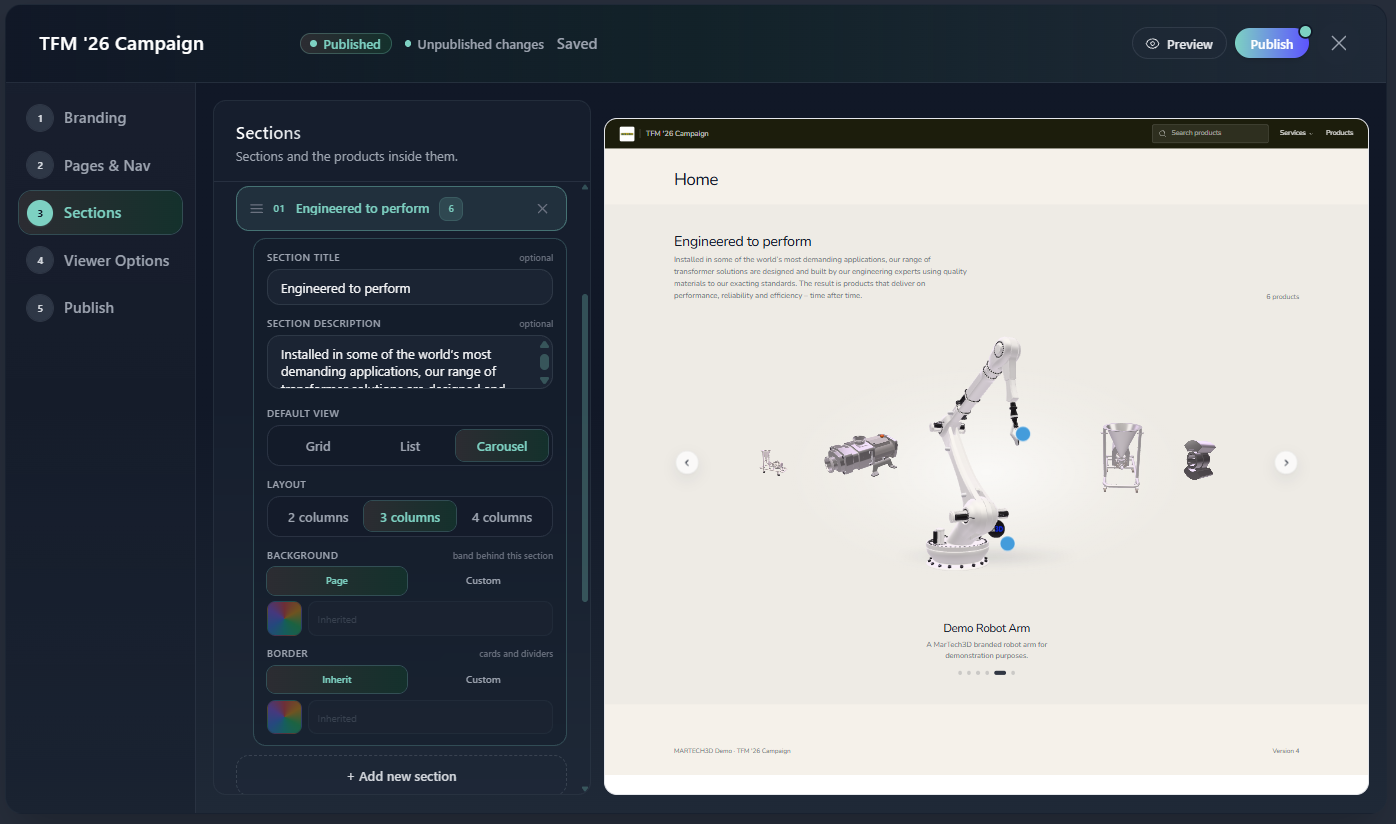
The builder with the five-step rail on the left (Branding, Pages & Nav, Sections, Viewer Options, Publish) and the live preview on the right.
📱 QR codes and Offline
Each product in a catalog can show its own QR code, on the cards, on carousel slides and in the enlarged view and it can work offline.
Where your account includes it, a catalog can also be set up to run offline or for an event, so it keeps working with no usable wi-fi. You will find this under Publish → Options → Enable offline Mode.
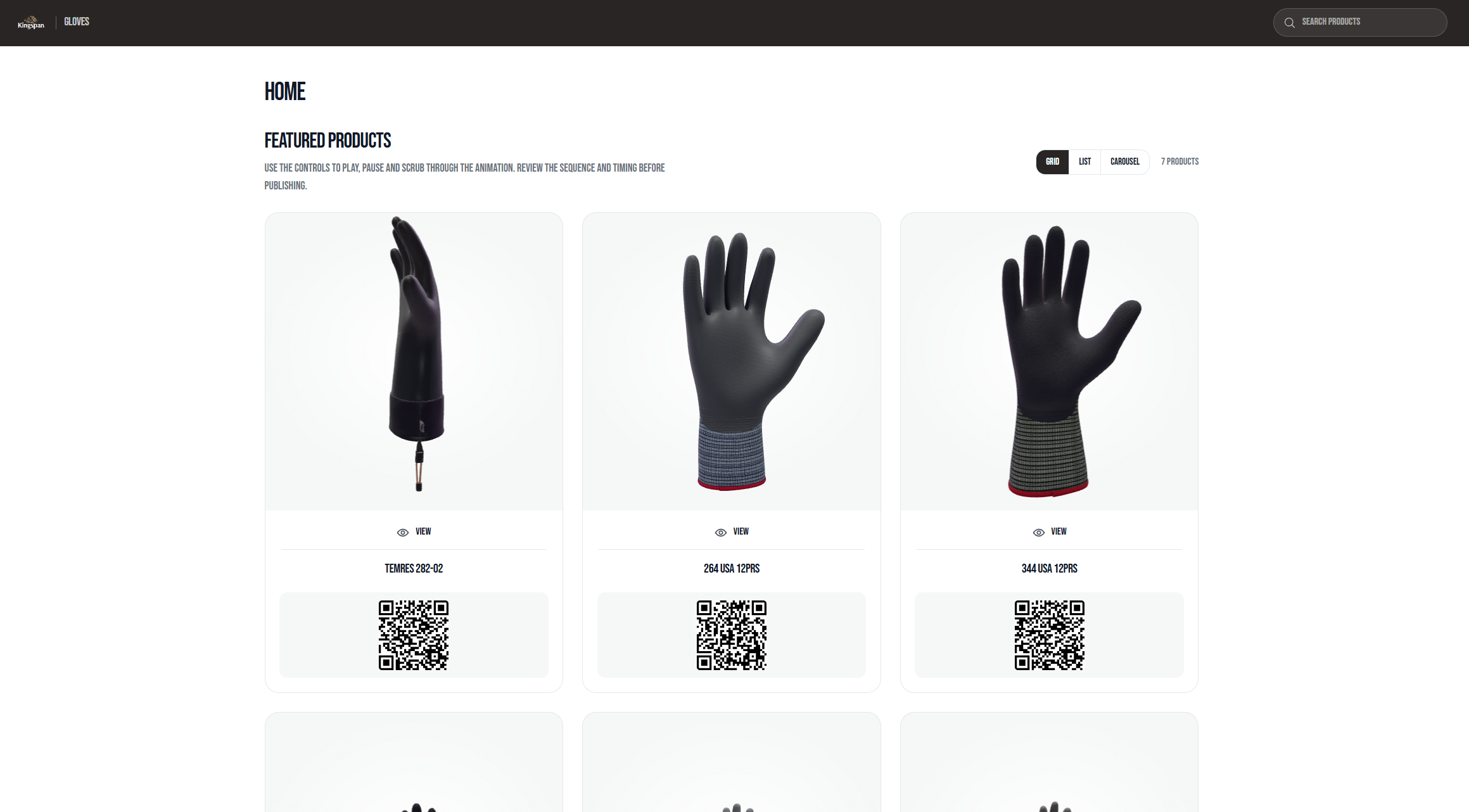
A published catalog page in grid view with a product QR code visible on each card.
➕ What depends on your licence
3D Catalogs is enabled per company. Your MarTech3D administrator controls the following from your account settings.
| Setting | What it does |
|---|---|
| Enable 3D Catalogs | Whether your team can build catalog at all |
| Allow Offline | Whether catalog can be set up to run offline |
| Catalog limit | How many catalog you can have. |
| Product archived / Product deleted | What happens to a published catalog when one of its products is archived or deleted |
If a setting is not included in your licence you will still see it, greyed out with a note about upgrading, rather than hidden. If you would like any of them enabled, speak to your account manager.
ℹ️ Important note
A published catalog link is genuinely public. Anyone holding the link can open it, and search engines can index it unless you turn that off under Publish → Options. Treat the link the way you would treat a PDF brochure: it can be forwarded, and it can outlive the exhibition you made it for.
Setting a catalog to Expires is the way to make sure a link stops working after a date. If a catalog is unpublished, expired, or no longer covered by your licence, visitors see a tidy branded page rather than an error, and it never reveals anything about your account.
🛠 Need Help?
If you have any questions or run into a problem, contact us via live chat inside MarTech3D | Engine, or email us at support@martech3d.com.