
How to publish, update and roll back a 3D Catalog
Publishing is the fifth step in the builder. Until you publish, a catalogue is a private draft and nobody outside your company can open it.
Every publish is kept as a numbered version, so you always have a way back to what you had before.
✅ Step-by-Step Guide
1. Set your public web address
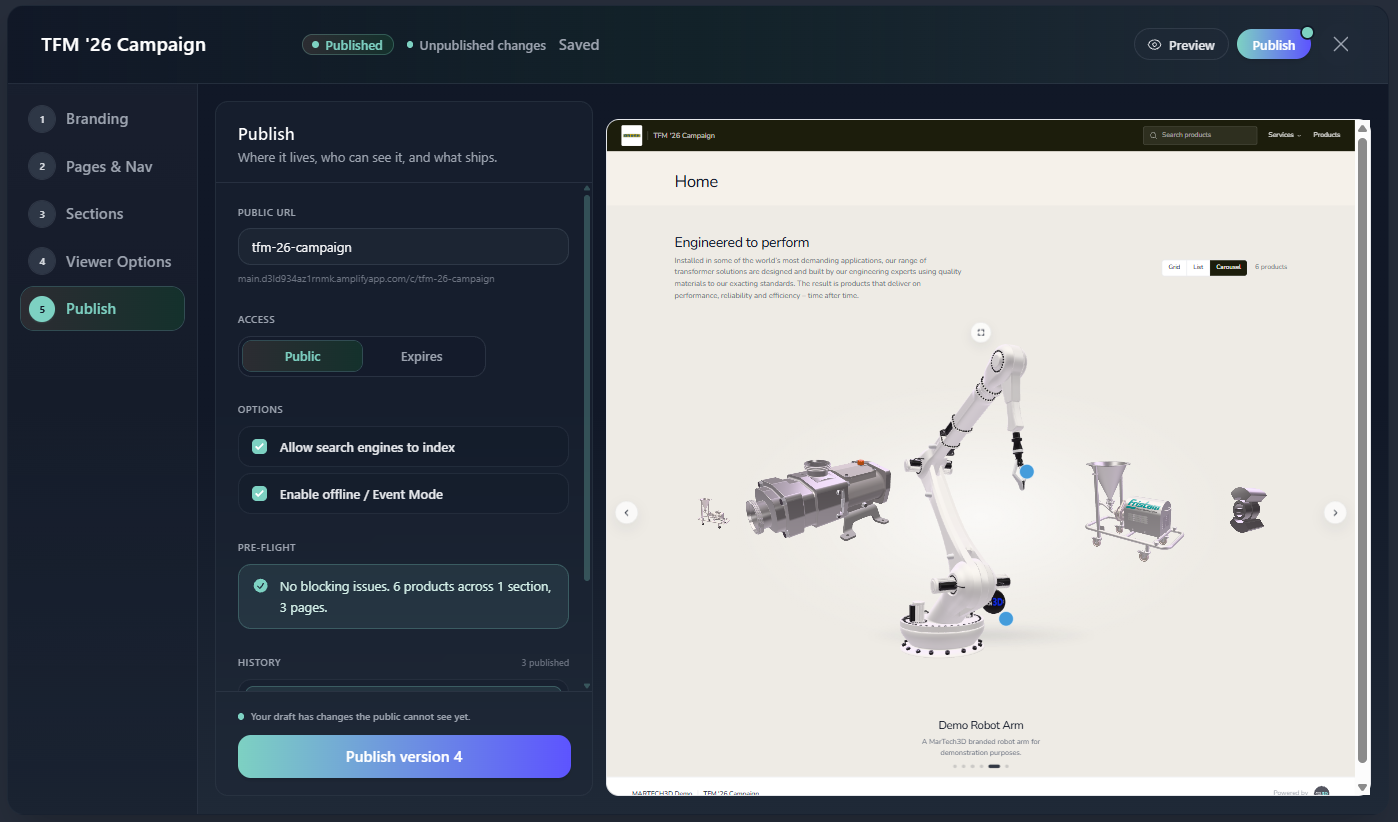
Under Public URL, set the short address for your catalogue, for example hydraulics-2026 . The published link takes the form viewer.martech3d.com/c/hydraulics-2026 .
Choose it carefully. This address is what goes on printed material and QR codes, and changing it later breaks every link already in the wild.
2. Choose who can open it
Under Access, choose Public, or Expires and pick a date. An expiring catalogue stops opening after that date and shows visitors a branded page rather than an error.
3. Set your options
Allow search engines to index decides whether your catalogue can turn up in search results. Turn it off for a catalogue meant only for the people you send it to.
Enable Offline Mode lets the catalogue be downloaded to a device and used without a connection. This is covered in its own article.
4. Check Pre-flight
Pre-flight lists anything that would stop the catalogue publishing properly, for example a menu item that does not point anywhere. Clear these before publishing.
5. Publish
Select Publish version 1. If anything needed attention but did not block the publish, a summary opens afterwards telling you what was dropped from the version and what published incompletely. A clean publish does not open anything.
The Publish step with Public URL, Access, Options and Pre-flight visible, and the Publish version button at the bottom.
🔄 Updating a published catalogue
Carry on editing as normal. Your changes go into the draft, and the public keeps seeing the last version you published.
The builder tells you when the two differ, in three places: a dot on the Publish button, a note beside the status, and a line above the publish button itself. When you are happy, publish again and the new version goes live.
⏪ Going back
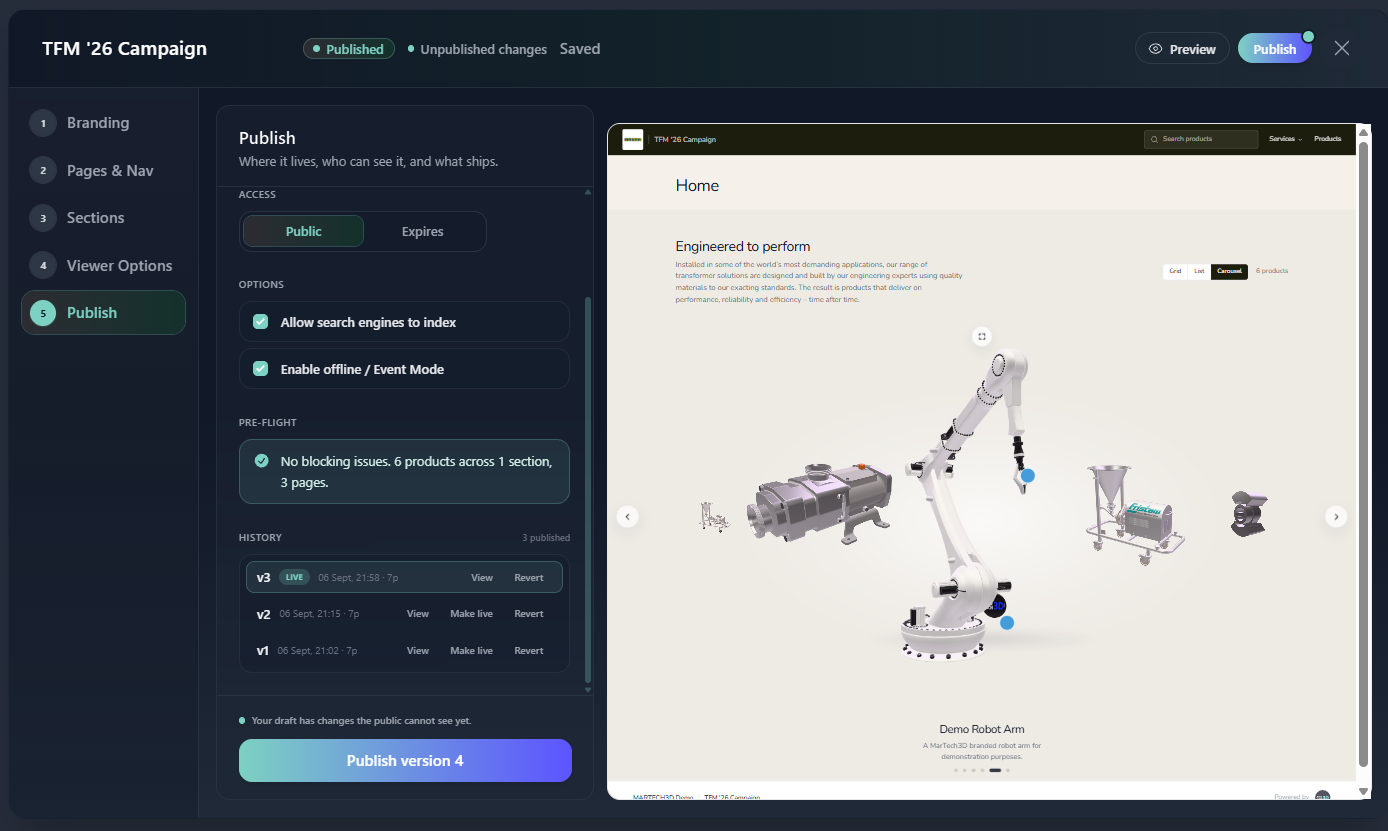
There are two different ways back, and they do opposite things. Both live under History.
| Control | What it does | Affects visitors? |
|---|---|---|
| Make live | Serves an earlier version to the public again | Yes, immediately |
| Revert | Puts your draft back to how it was at an earlier version | No |
Make live is for when you have published something wrong and need the previous version back in front of people now. It takes effect straight away, with no second publish step. Nothing is deleted and no version is rewritten, so you can move forward again whenever you like.
Revert is for the editor, not the public. It rewinds your draft so you can carry on from an earlier point. The dialog shows what your draft holds now against what the older version held, so you can see what you are about to change. The live catalogue is untouched, and nothing changes for visitors until you publish again.
You can also open an older version in the browser to look at it before deciding, using the view action beside it in History.
The History list with a version expanded, showing the view, Make live and Revert actions.
ℹ️ Important note
Your product wording is frozen into each published version, so editing a description in Engine will not change a catalogue already in front of a customer until you republish. Your 3D models are not frozen: if a model is replaced in Engine, published catalogues pick it up. That is deliberate, so nobody is ever shown a broken or out-of-date model.
Unpublishing a catalogue takes it offline immediately. Anyone opening the link sees a branded page in your own colours, and it never reveals anything about your account.
🛠 Need Help?
If you have any questions or run into a problem, contact us via live chat inside MarTech3D | Engine, or email us at support@martech3d.com.