
How to brand your 3D Catalog
Branding is the first step in the catalogue builder, and it controls how the whole published page looks. There is no separate theme to pick: the colours you set here carry through every page, section and product card.
The preview beside the panel updates as you go, so you can judge each change against the real page rather than guessing.
📋 Before You Start
Have your logo ready as a transparent PNG or SVG. It is shown whole and is never cropped, so a wide wordmark works well.
✅ What you can set
| Setting | Notes |
|---|---|
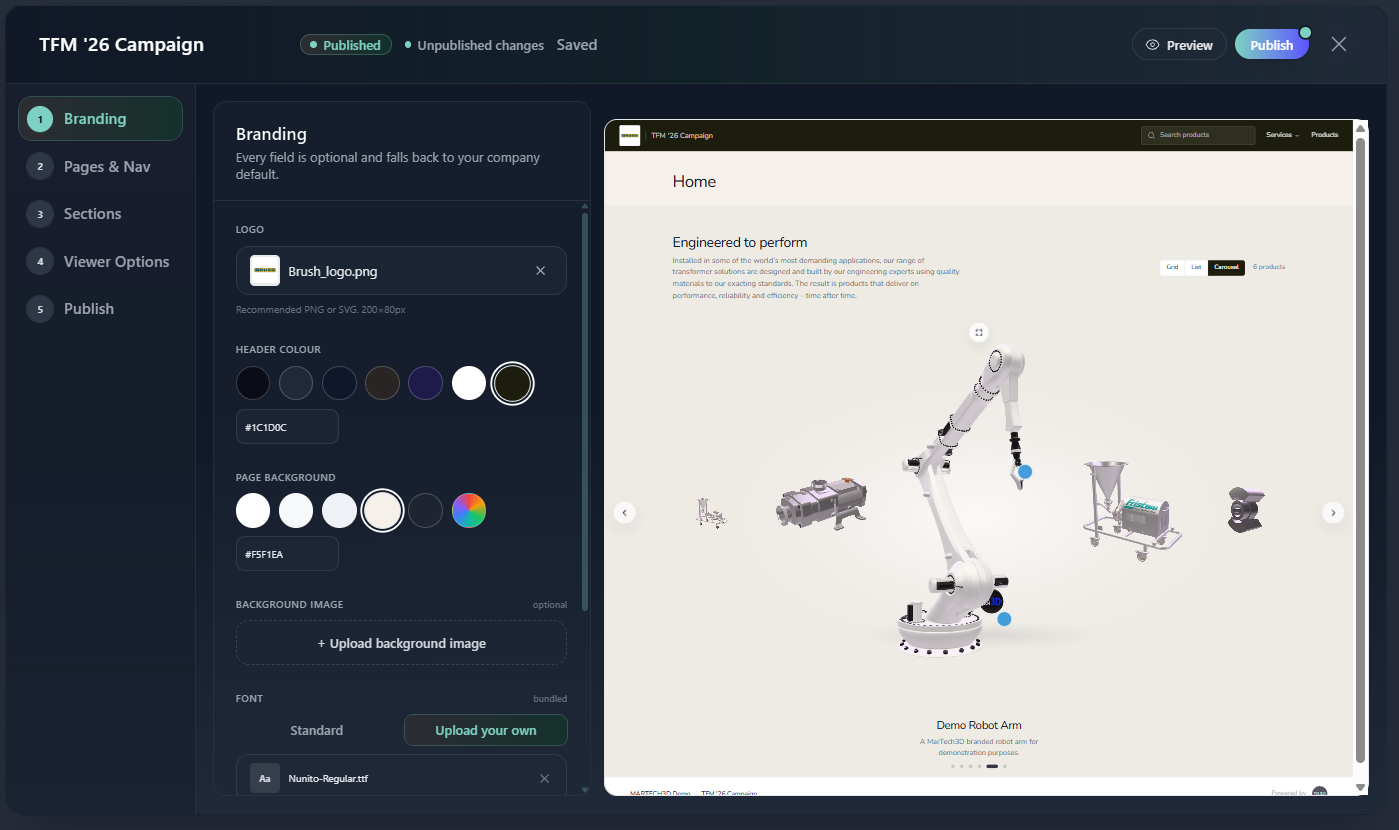
| Logo | Sits in the header. Drawn at full width, never cropped into a circle or square |
| Header Colour | The bar across the top. Pick from the swatches or enter a hex value |
| Page Background | The colour behind everything else |
| Background image | Optional, sits behind the page. Use a subtle image; product cards sit on top of it |
| Font | Either a standard web font, or upload your own brand font |
| Corners | How rounded the product cards are |
| Card Style | Outlined gives each card a visible edge. Blended removes the card background and shadow so products sit directly on the page |
The Branding step with Logo, Header Colour and Page Background set, and the live preview showing the result.
🎨 What you do not need to set
You will not find an accent colour picker, and that is deliberate.
The accent reaches small things: focus outlines, the underline on the active menu item, carousel dots, filter chips. The catalogue works it out from your Header Colour, so those controls stay on brand without anyone choosing a second colour that has to be kept in step with the first.
Text colour is handled the same way. The catalogue measures the brightness of your background and picks readable text against it, so a dark palette inverts its own copy automatically.
🔤 Using your own font
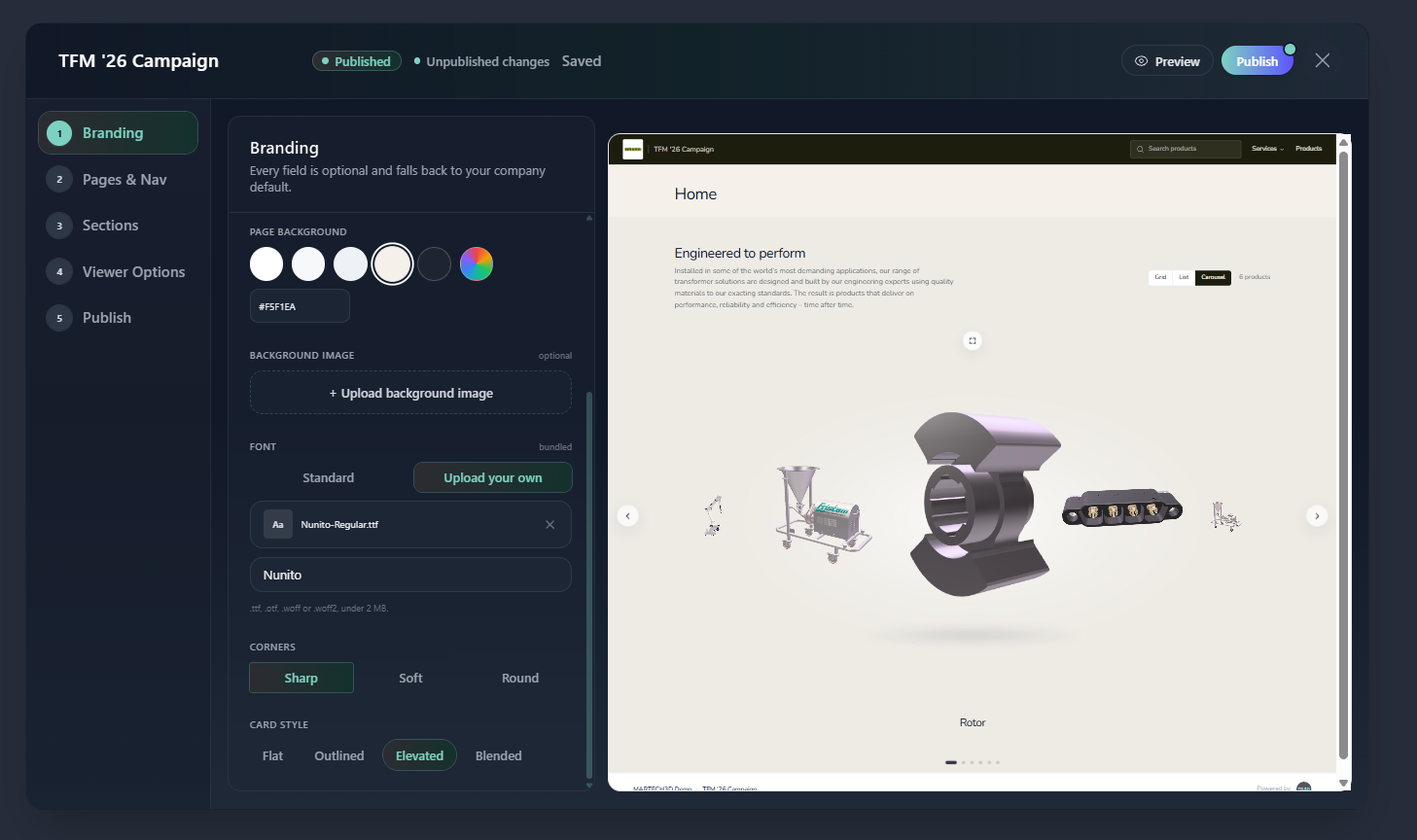
Under Font, you can upload a brand font file rather than using a standard web font. You will be asked for the family name as it should appear, for example Nunito .
An uploaded font travels with the catalogue, including when a catalogue is set up for offline use, so it renders correctly on a stand with no connection. Use Remove font to go back to a standard font at any time.
The Font control with a brand font uploaded and its family name filled in.
ℹ️ Important note
Branding applies to the whole catalogue, not to a single page. If you want one section to stand out, that is done on the Sections step with Background and Border, which can either inherit your page colours or take a colour of their own.
Changing branding on a catalogue you have already published does not change what visitors see until you publish again. Until then the change lives in your draft, and the builder shows a dot on the Publish button to tell you so.
🛠 Need Help?
If you have any questions or run into a problem, contact us via live chat inside MarTech3D | Engine, or email us at support@martech3d.com.