
How to set up a 3D Catalog for offline use
Offline Mode downloads a catalog onto a device in advance so it keeps working with no connection at all.
📋 Before You Start
- The catalog must be published. A draft cannot be downloaded.
- Enable Offline Mode must be switched on for that catalog, under Publish → Options.
- Your licence must include offline use. If the option is greyed out, speak to your account manager.
- Do this on the actual device you will use at the stand, on a good connection.
✅ Step-by-Step Guide
1. Open the catalog on the device
Open the catalog's public web address in the browser on the tablet or phone you are taking to the event.
2. Choose Set up for offline use
Scroll to the foot of the page and select Set up for offline use.
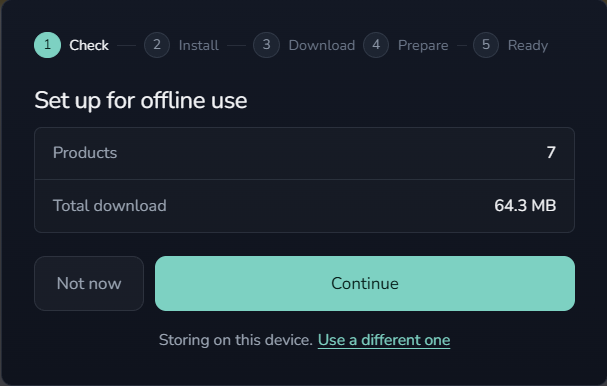
You will be shown how many products are included and the total download size, so you know what you are committing to before it starts. Select Continue.
The Set up for offline use panel showing the product count and total download size with the Continue button.
3. Add it to your home screen
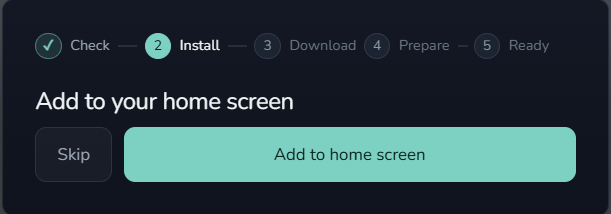
Follow the instructions shown for your device.
- On iPad or iPhone: tap Share in the browser bar, choose Add to Home Screen, then open the catalog from your home screen and come back to this step.
- On a computer: look for the install icon at the right of the address bar, or open the browser menu and choose Install page as app.
This step matters on Apple devices in particular, because a home-screen app and a Safari tab keep their storage separately. Do it before the download rather than after.
The Add to your home screen step with the iOS Share and Add to Home Screen instructions.
4. Let it download
The device is checked for space first, so if there is not enough room you are told now rather than part way through. Then the products download, and you can watch how many are ready and how many are still to fetch.
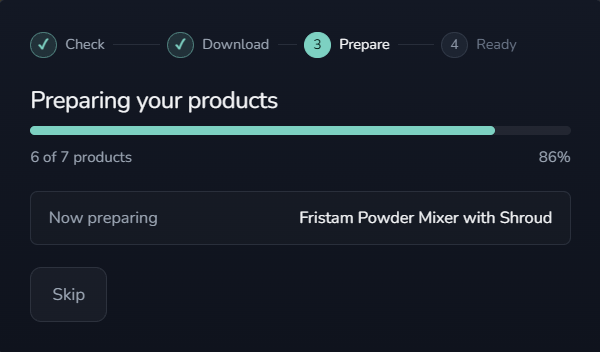
The download resumes if it is interrupted, so a dropped connection does not mean starting again.
5. Confirm it is ready
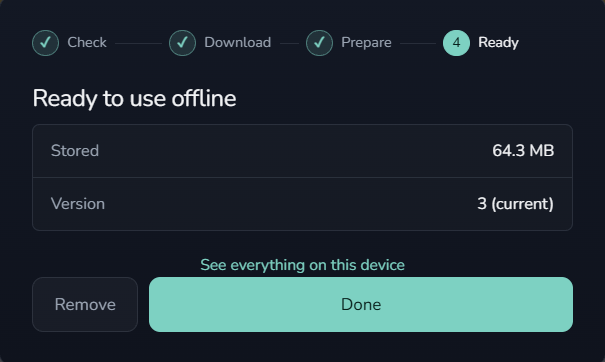
When it finishes you will see Ready to use offline, with what has been stored and which version. Select See everything on this device to see every catalog held on it.
The Ready to use offline screen showing what is stored and the version number.
🔄 Keeping it up to date
If you publish a new version of the catalog, a device that already holds it is told there is a New version next time it has a connection. It only downloads what actually changed rather than the whole catalog again.
Check for updates while you still have good wi-fi, the evening before a show rather than on the stand.
📱 Using it on the day
Open the catalog from the home screen icon rather than the browser. Everything works as it does online: products render in 3D, hotspots open, and enquiries left by visitors are held on the device and sent once it has a connection again.
❓ Troubleshooting
Set up for offline use is not at the foot of the page. Offline Mode is not switched on for that catalog, or your licence does not include it.
It says there is not enough space. Free space on the device and try again. 3D catalogs can be large, which is why the check happens before the download rather than during it.
The catalog says it is no longer available. It has been unpublished or withdrawn since the device downloaded it. The stored copy is removed on purpose, so an out-of-date catalog is never shown to a customer.
ℹ️ Important note
Offline Mode is per device. A catalog downloaded onto one tablet is not available on another, so set up every device you plan to use.
Set aside time for this. A catalog with a lot of products is a large download, and it is not something to attempt on stand wi-fi an hour before doors open.
🛠 Need Help?
If you have any questions or run into a problem, contact us via live chat inside MarTech3D | Engine, or email us at support@martech3d.com.