
How to view STEP and CAD files and their parts
The Part Viewer in MarTech3D | Engine makes it easy to open and review STEP and other CAD files directly in your browser.
It is especially useful for marketers who need to understand what is inside a CAD file, check product variations, review individual components and keep product files organised, without needing specialist CAD software.
✅ Step-by-Step Guide
1. Open the product menu
From the Product Library, select the menu on the relevant product tile.
2. Select Manage Product
Select Manage Product from the menu.
3. Open the Part Viewer
Select Part Viewer.
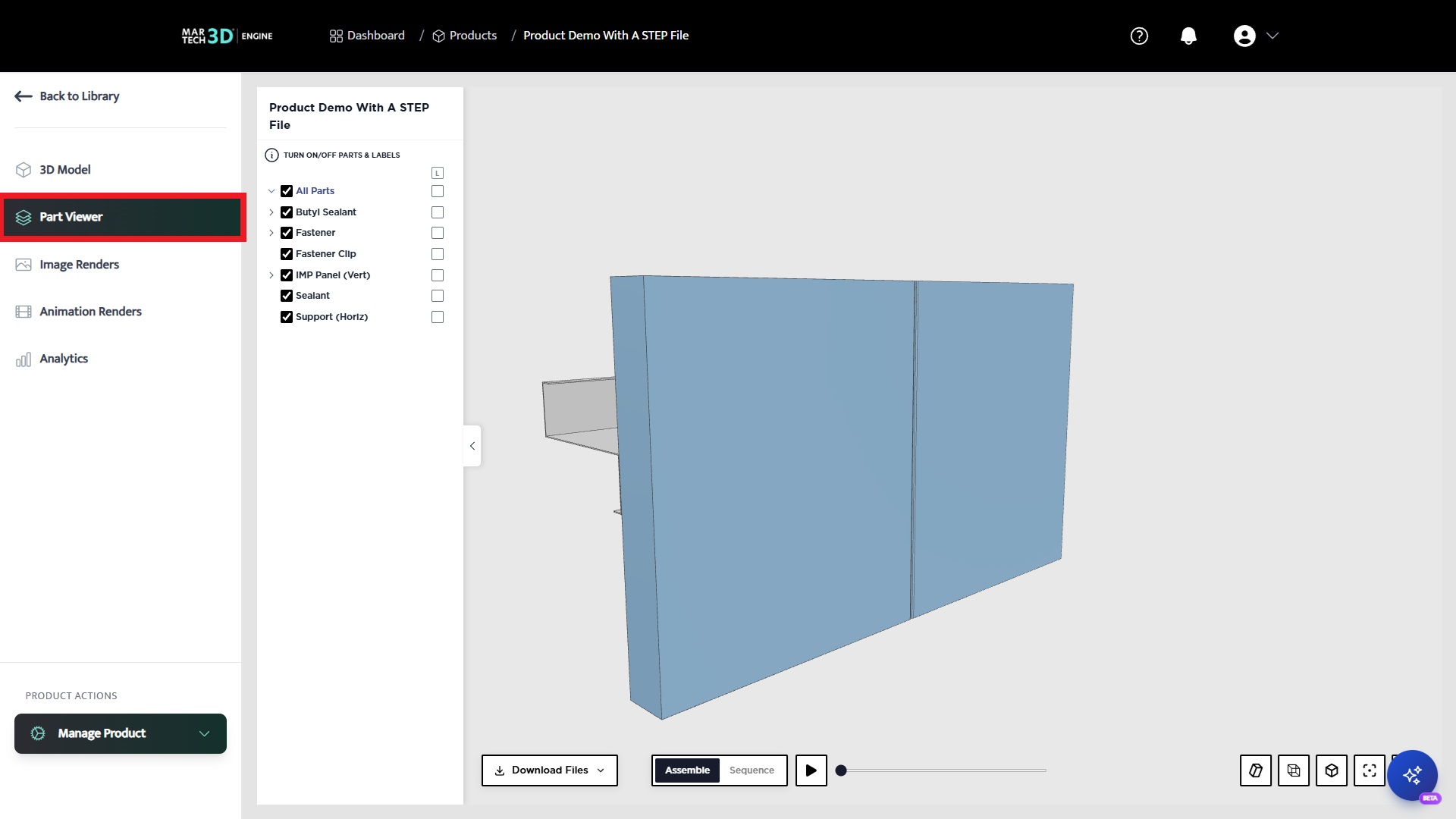
4. View the CAD file and its parts
Your CAD file will open in the viewer, with all available parts shown in a list.
You can use this to quickly check:
- Which product or variation the file contains
- Which individual parts are included
- How the product is structured
- Whether the correct CAD file has been uploaded
5. Show or hide parts and labels
Use the parts list to show or hide individual parts.
You can also show or hide part labels, making it easier to identify and review specific components.
💡 Tip: Hiding parts is useful when you need to inspect internal components, isolate a specific section or confirm which parts should appear in a product visual.
📁 Keep Your CAD Files Organised
Storing CAD files against each product in MarTech3D | Engine gives marketing, engineering and external partners one organised place to find and review the correct files.
This helps marketers work more independently, while reducing file confusion, unnecessary emails and back-and-forth with engineering teams or agencies.
🛠 Need Help?
Contact our support team through the live chat in MarTech3D | Engine, or email support@martech3d.com.