
How to Export a 3D Catalog as a PDF
Introduction
Turn your published catalogue into a branded PDF for email, sales meetings and print. Export the whole range or selected catalogue pages, with product images prepared automatically from your 3D models.
📋 Before You Start
- Sign in to MarTech3D | Engine and open your company's 3D Catalogs.
- Publish the catalogue, including any changes you want in the PDF.
- PDF export must be enabled for your company. If it is missing, contact your account manager or support.
- Use a reliable internet connection and keep the browser tab open and active until the PDF is saved.
✅ Step-by-Step Guide
1. Select Export PDF
Open your published catalogue's menu and select Export PDF. The window shows the published version you are exporting.
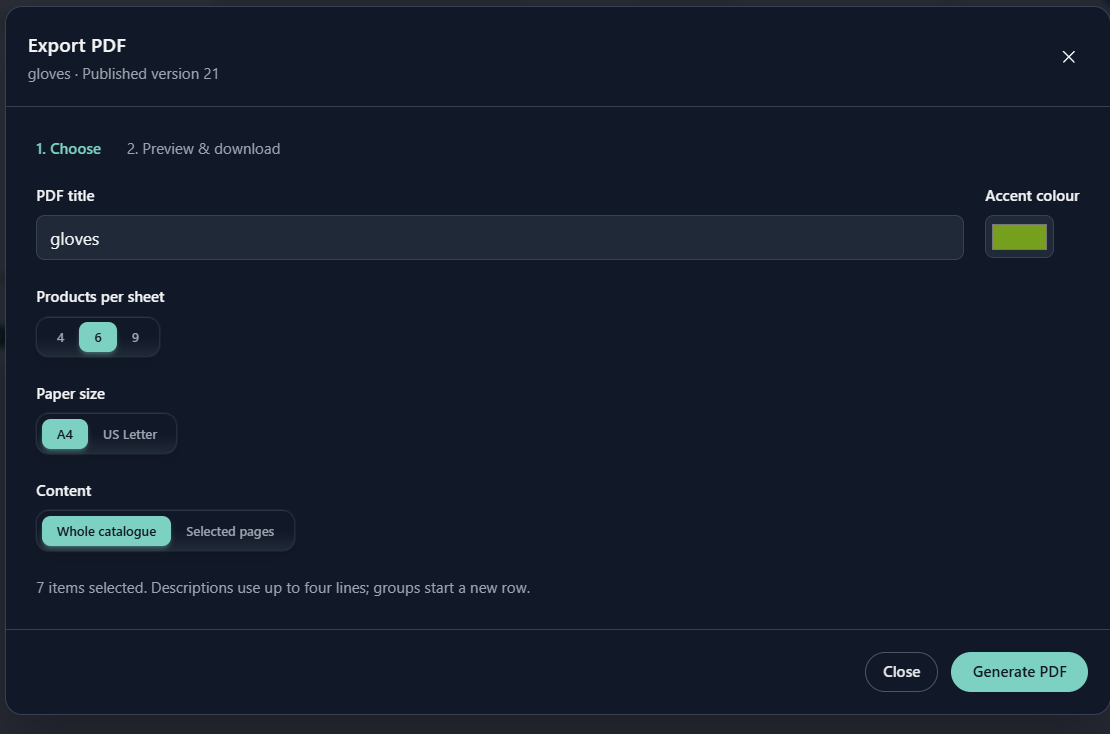
2. Set the PDF title and accent colour
Choose PDF title and Accent colour
3. Choose Products per sheet and Paper size
Under Products per sheet, choose 4 for larger images, 6 for the standard layout, or 9 for a compact layout. Choose A4 or US Letter under Paper size.
4. Choose the Content
Choose Whole catalogue, or choose Selected pages and tick the pages you need. Select all selects or clears every page; you must leave at least one selected.
These are catalogue pages, so the PDF may use a different number of sheets.
5. Select Generate PDF
Select Generate PDF and keep this tab open and active while images are prepared and the PDF is saved. Larger catalogues take longer; closing or refreshing the tab before saving means starting again.
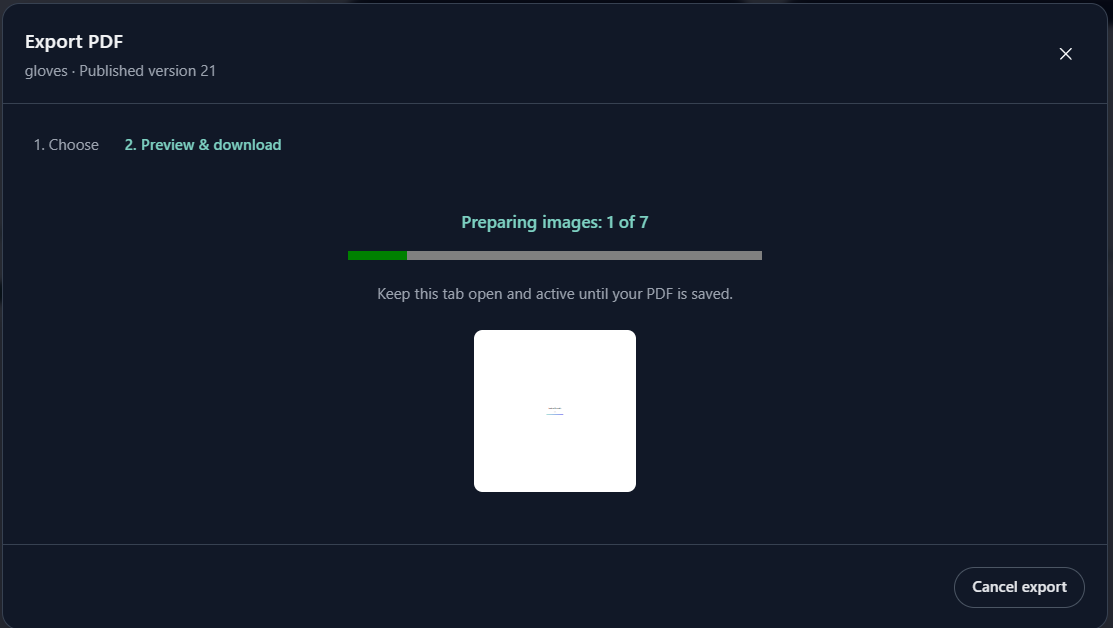
6. Select Download PDF
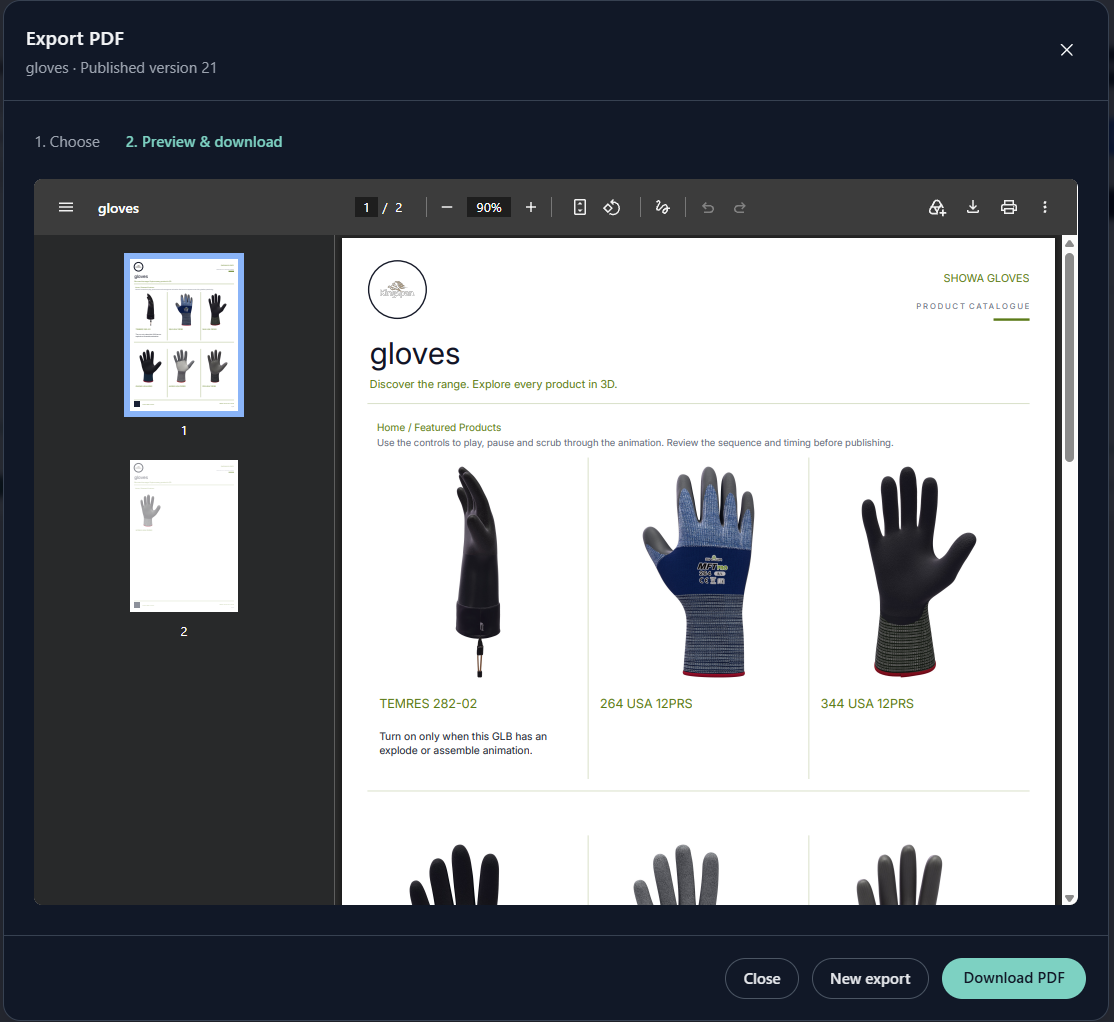
Once saved, the preview opens automatically. Review it and select Download PDF; each download's filename includes the published version and a UTC date and time.
The completed PDF preview with Download PDF visible.
🔄 Downloading again or updating your PDF
Reopen Export PDF and select Open last PDF to retrieve your latest saved export without generating it again. To include changes, publish the updated catalogue and generate a new PDF; previously saved PDFs stay unchanged.
❓ Troubleshooting
- Export PDF is missing: check that the catalogue is published and PDF export is enabled for your company.
- Preview & download does not click: it is a progress label. Select Generate PDF first; the preview appears after saving.
- Generation pauses: return to the export tab and keep it active.
- Saving fails: keep the window open and select Retry upload to save the same PDF without regenerating its images.
- My latest model view is missing: PDF export uses published viewing settings. Publish the changes and generate a new PDF, even if your online catalogue uses automatic model updates.
🛠 Need Help?
If you have any questions or run into a problem, contact us via live chat inside MarTech3D | Engine, or email us at support@martech3d.com.