
How To Activate Your Account From an Invitation
Introduction
You will receive an email with a link to set up your own account. You do not need a password from your administrator, you choose one yourself during activation. Once activated, you are logged straight in and can start using the platform.
✅ Step-by-Step Guide
1. Open the invitation email
Look for an email from MarTech3D with the subject line inviting you to join your company's workspace. The email contains a button or link to activate your account.
> Tip: If you cannot see the email, check your spam or junk folder. If it is not there, ask your administrator to resend the invitation.
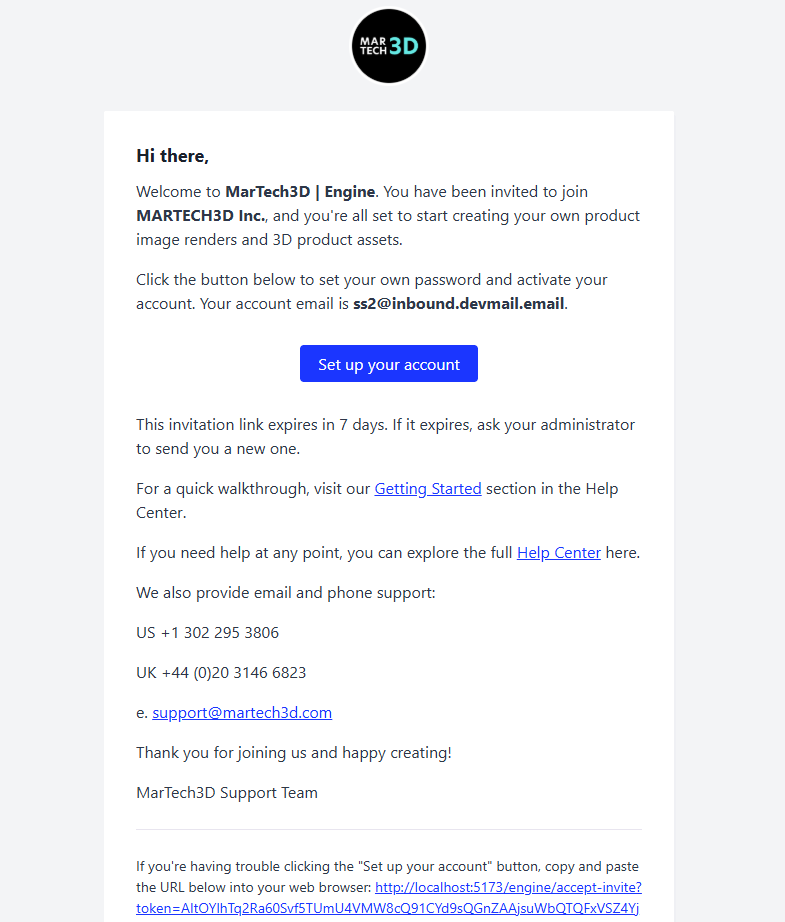
2. Select the activation link
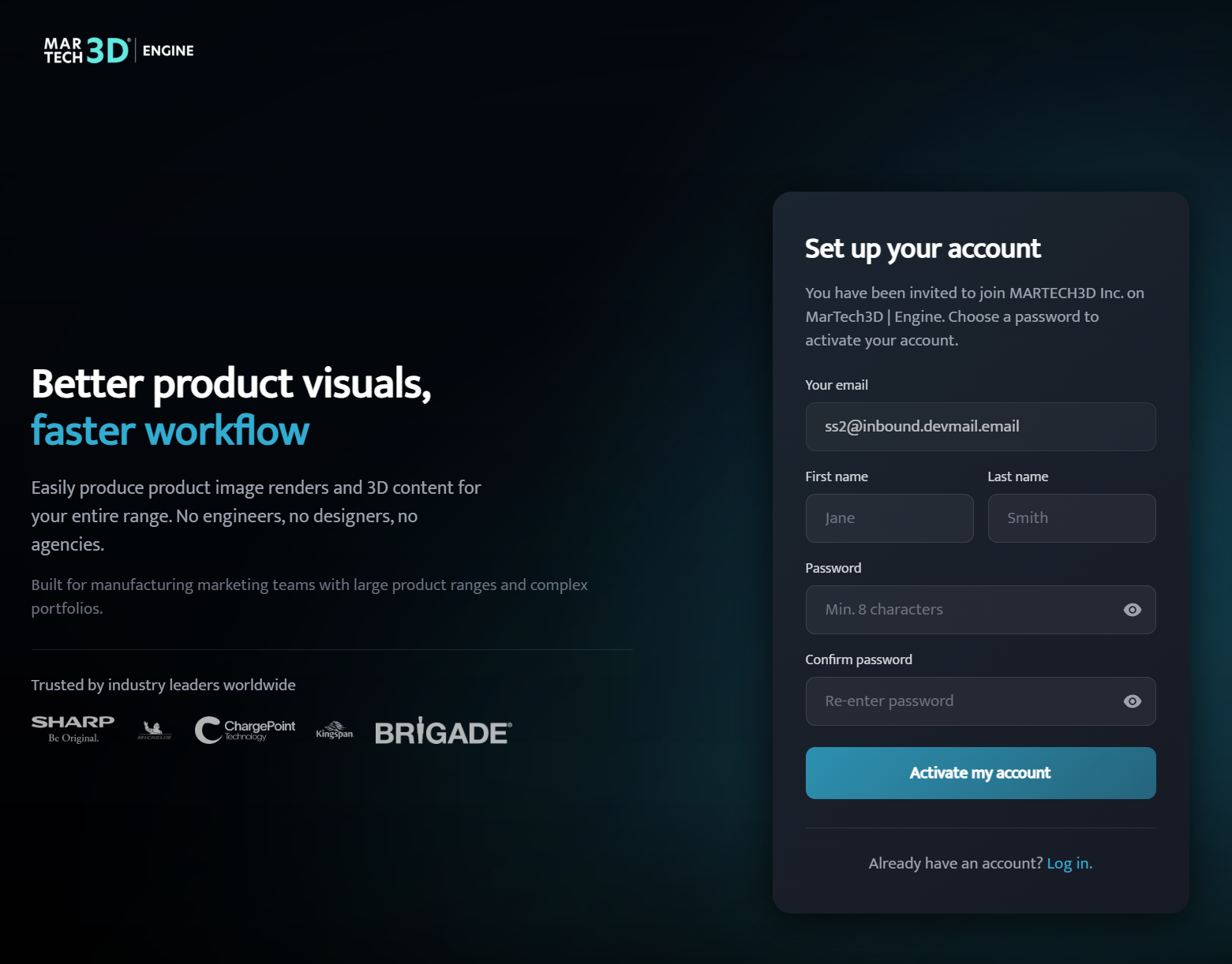
Select the button or link in the email. You will be taken to a page that checks your invitation and shows the Set up your account form.
3. Confirm your email address
Your email address is shown at the top of the form and is locked, it cannot be changed here. This is the address your administrator invited. If it is wrong, ask your administrator to revoke the invitation and send a new one to the correct address.
4. Enter your name
Fill in your First name and Last name.
5. Choose a password
Enter a password of at least 8 characters in the Password field, then type it again in Confirm password to make sure it matches.
Select the eye icon next to either field if you want to see what you are typing.
> Tip: Use a mix of letters, numbers, and symbols for a stronger password.
6. Select Activate my account
Select the Activate my account button. Your account is created and you are logged in automatically, you do not need to go to a separate login page afterwards.
🔄 What Happens After Activation
- You are logged straight into MarTech3D | Engine.
- If you are logged out later, use your email address and the password you just chose to log back in at the normal login page.
❓ Troubleshooting
- The link says "Invitation expired". Invitation links expire after a set period. Ask your administrator to resend the invitation and use the new link.
- The link says "Invitation already used". This invitation has been activated already. If it was you, simply log in at the normal login page with your email and password. If it was not you, contact your administrator — they can revoke the invitation and send a new one.
- The link says "Invitation revoked". Your administrator cancelled this invitation before you used it. Ask them to send a new one.
- The link says "Invitation not valid" or "missing its token". The link may have been truncated when copied. Use the full link directly from the invitation email, or ask your administrator to resend it.
- Passwords do not match. Type both fields again carefully. The confirmation must be identical to the password, not just similar.
- I never received the email. Ask your administrator to resend the invitation. They can also copy the invitation link directly and send it to you through another channel.
🛠 Need Help?
If you have any questions or run into a problem, contact us via live chat inside MarTech3D | Engine, or email us at support@martech3d.com.