
How to Show Thumbnails Instead of 3D Models in Your Product List
Introduction
By default, every card on the Browse Products page loads a live, fully interactive 3D model. If your products are detailed — large CAD-derived models with high-resolution textures — the page has to download and display all of them before it settles, which can make browsing feel slow. You can switch the grid over to static thumbnails instead, so products load instantly and the 3D model only appears when someone actually wants it. This is a company-wide setting, so it applies to everyone on your account.
📋 Before You Start
- You need access to Settings in MarTech3D | Engine.
- Thumbnails are taken from your completed image renders. If a product has no completed image render yet, its card prompts you to create one
✅ Step-by-Step Guide
1. Open your General product settings
From the main menu, go to Settings → Product Settings → General Settings.
2. Find the Display Preferences section
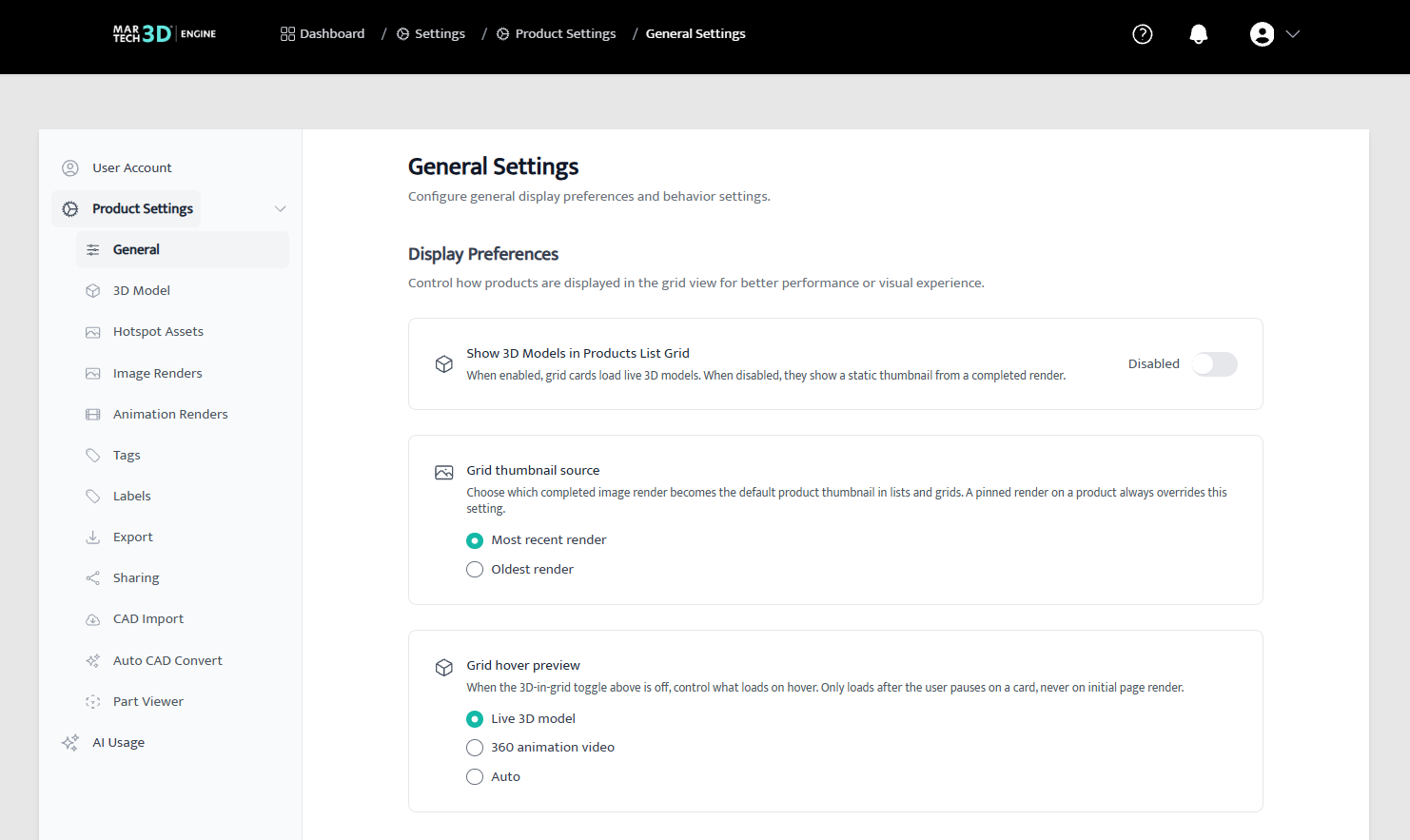
At the top of the page you will see Display Preferences, which controls how products are shown in the grid view.
3. Turn off Show 3D Models in Products List Grid
Switch the Show 3D Models in Products List Grid toggle off. The label beside it changes from Enabled to Disabled.
4. Choose your grid thumbnail source
Two more options appear once the toggle is off. The first, Grid thumbnail source, decides which of a product's completed image renders becomes its thumbnail:
- Most recent render — always shows your newest image of the product.
- Oldest render — keeps the first image you created, so thumbnails stay consistent over time.
Pick one and it saves immediately.
5. Choose what happens on hover
The second option, Grid hover preview, decides what loads when someone pauses on a product card. Nothing loads while the page is opening, so your grid stays fast either way.
- Live 3D model — loads the interactive 3D model on hover.
- 360 animation video — plays the product's 360 animation on hover.
-
Auto — picks whichever preview is available for that product.
🔄 What Changes for Your Team
- The Browse Products page shows a still image for each product instead of a live 3D viewer.
- The 3D model is still there — it loads when you open the product, or on hover if you enabled a hover preview.
- Products that do not have a render yet prompt you to create one, so gaps in your library are easy to spot and fix.
📁 Why Turn Off 3D in the Grid?
- Faster page loads — a thumbnail is a small image. A 3D model can be hundreds of times larger, and the page loads one for every card at once.
- Biggest difference with detailed models — the heavier your products are, the more you gain. Large CAD-derived models with high-resolution textures are where this setting really shows.
- Kinder to laptops and mobile — far less memory and graphics processing, so the page stays smooth on everyday devices and on slower connections.
- Consistent, on-brand imagery — you decide exactly which render represents each product.
> Note: This is about how heavy your models are, not how many products you own. The product list is paginated, so each page loads the same number of cards — what changes is the size of the models on that page.
❓ Troubleshooting
- A product shows a cube instead of an image. That product has no completed image render yet. Hover the card and select Create first render — the thumbnail appears automatically once the render finishes.
- The wrong image is being used. Either change the Grid thumbnail source setting, or pin the render you want with Set as thumbnail.
- Nothing changed after I switched the toggle. The page reloads on save — if you still see 3D models, refresh your browser once more.
🛠 Need Help?
If you have any questions or run into a problem, contact us via live chat inside MarTech3D | Engine, or email us at support@martech3d.com.